

 Full manual PDF


Connecting the wireless LAN connecting adapter to your home network
Click the button below and read the information on the following page.
The wireless LAN connecting adapter can be connected to your home network by means of:
- Online mode – Using the internet
- Offline mode – Access point connection (AP connection)
- Offline Mode using a router on your home network
Online mode – Using the internet
You can connect your smart phone directly to the wireless LAN connecting adapter in order to set up a connection to your home network by following these steps.
– This step requires SSID number and KEY located on the indoor unit or on the manual.
– This step requires SSID number and KEY located on the indoor unit or on the manual.
-
Please check [Check the indoor unit lamp] section.
If the lamp is not blinking/not light, press [1] the wireless LAN connecting adapter switch to turn on the wireless LAN connecting adapter, wait about 10 seconds.- The wireless LAN connecting adapter lamp will blink slowly.
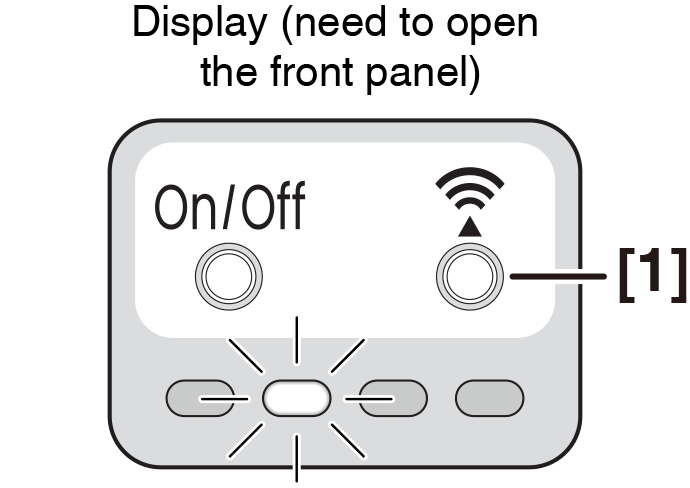
-
Open the application, log-in using the online platforms Facebook, Google or Apple etc, and fill your information.
Then, set up the initial settings by follow the on-screen instructions. -
Tap [+ Add device] on “Air management” page on the application by follow the on-screen instructions.
(If you choose to connect using the QR code, scan the SSID and KEY sticker are located on the indoor unit.)
- If the connection is successful. The wireless LAN connecting adapter lamp stays lit.
- The sticker is on the indoor unit.
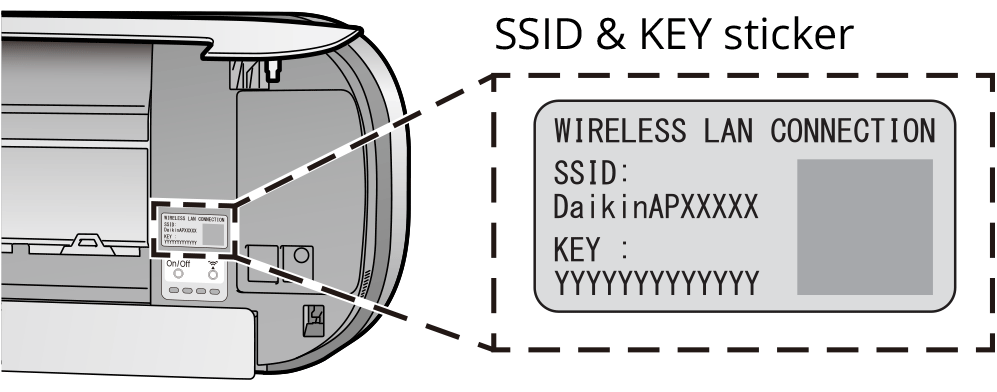
-
Open the Home screen of the application.
The air conditioner will be listed there.
NOTE
Notes on access point connection (AP connection)
- If you fail to connect (the wireless LAN connecting adapter lamp (white) continues to blink), repeat steps 1-3.
- If the user checks status or connects again during the scheduling operation, the scheduling operation lamp will stays lit.
Close
Offline mode – Access point connection (AP connection)
 ATTENTION
Please disconnect the mobile data or cellular before for this method.
-
Please check [Check the indoor unit lamp] section.
If the lamp is not blinking/not light, press [1] the wireless LAN connecting adapter switch to turn on the wireless LAN connecting adapter, wait about 10 seconds.- The wireless LAN connecting adapter lamp will blink slowly.
-
Connect your smartphone to the wireless LAN adapter via your smartphone Wifi settings menu by selecting the Wifi name that matches the SSID sticker and enter the KEY or scan the QR code on the SSID&KEY sticker by using your smartphone’s camera.
- The sticker is on the indoor unit.
- If the connection is successful. The wireless LAN connecting adapter lamp will blinks for every 1 second. Otherwise, please refer to NOTE.
-
Open the application, select “Use Offline-control” on the screen.
If the connection is successful. The “Air Management” page will be appears on the screen.
NOTE
Notes on access point connection (AP connection)
- If you fail to connect (the wireless LAN connecting adapter lamp (white) continues to blink), repeat steps 1-3.
- If the user checks status or connects again during the scheduling operation, the scheduling operation lamp will stays lit.
Close
Offline Mode using a router on your home network
-
Please check [Check the indoor unit lamp] section.
If the lamp is not blinking/not light, press [1] the wireless LAN connecting adapter switch to turn on the wireless LAN connecting adapter, wait about 10 seconds.- The wireless LAN connecting adapter lamp blinks more quickly.
- Turn on the smartphone’s Wifi by going to the Wifi settings menu.
- Open the application, select Use “Offline-control” on the screen.
-
Tap [+ Add device] on “Air management” page on the application by follow the on-screen instructions. (If you choose to connect using the QR code, scan the SSID and KEY sticker are located on the indoor unit or on the manual.)
-
If the connection is successful. The wireless LAN connecting adapter lamp stays lit.
Otherwise, please refer to NOTE.
-
If the connection is successful. The wireless LAN connecting adapter lamp stays lit.
NOTE
Note on Offline Mode using a router on your home network
If you fail to connect (the wireless LAN connecting adapter lamp (white) continues to blink), repeat steps 1-4. Alternatively, try connecting via your device directly.Please refer to “Access point connection (AP connection)”.
Close
