

 Full manual PDF


Application controller
Preparing the application
To set the time zone (set the clock)
Please check your device’s time zone in the application before operation.
You can check it in the Device Settings menu of the application.
* The screen may be changed if the application has been updated.
You can check it in the Device Settings menu of the application.
* The screen may be changed if the application has been updated.
To set
-
Tap [1] ”
 ” from the menu. (Fig. 1)
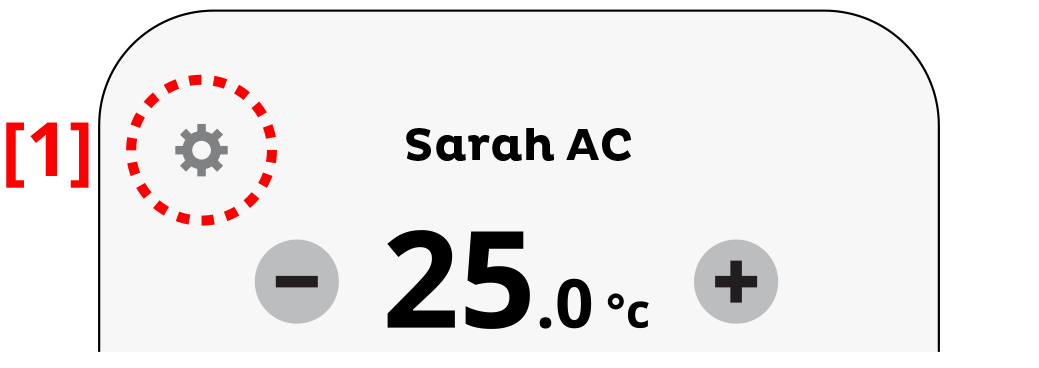 Fig. 1
 -
Tap [2] “Time zone” on the screen. (Fig. 2)
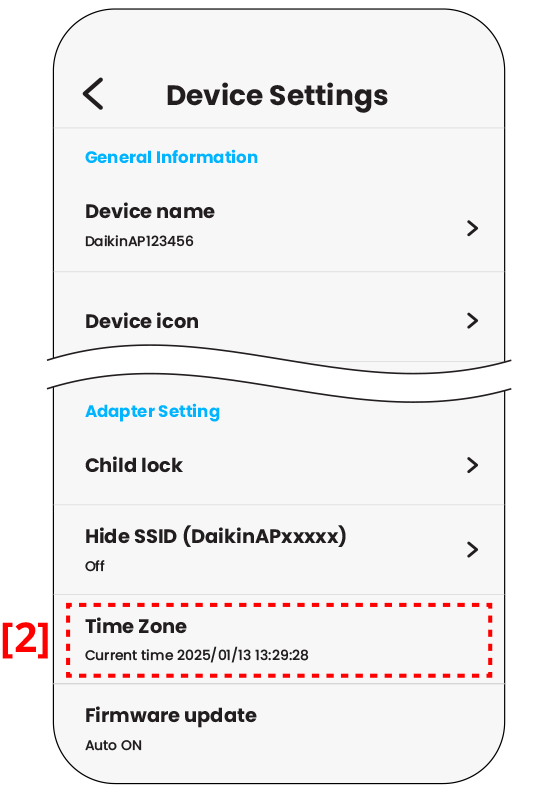 Fig. 2
 - Set the time zone by follow the on-screen instructions.
Close
Setting the brightness of the indoor unit lamps
* The screen may be changed if the application has been updated.
To set the brightness of the indoor unit lamps
Adjust the brightness of the indoor unit display as desired, or turn OFF the display.
To set
-
Tap [1] ” ” from the menu. (Fig. 1)
Fig. 1
-
Tap [2] “Brightness” on the screen. (Fig. 2)
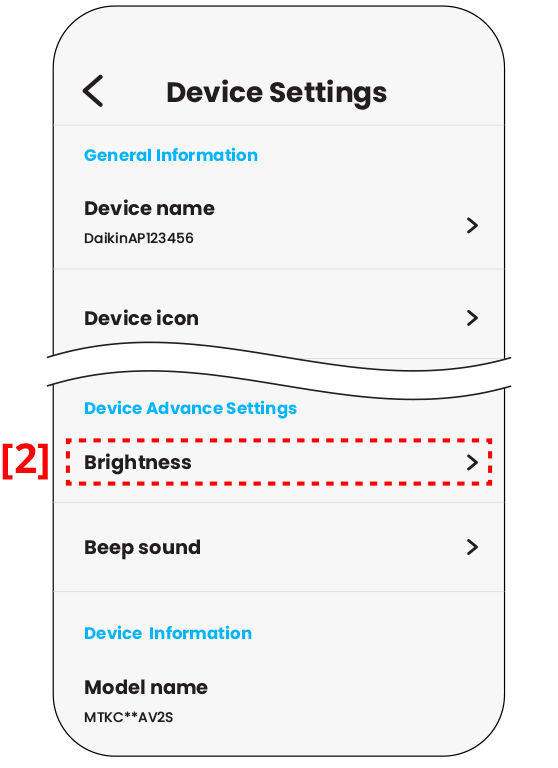 Fig. 2
 -
Select the desired brightness as follows:
- Brightness will be set to the chosen value.
 BRIGHTNESS High (default)
 BRIGHTNESS Low
 BRIGHTNESS Off
NOTE
Note on setting the brightness of the indoor unit lamps
- The function to turn on or turn off the indoor unit lamp enhances user convenience, saves energy, adapts to various activities, reduces disturbance during sleep.
Close
Setting the indoor unit sound
* The screen may be changed if the application has been updated.
When the unit receives a order for each operation, you will hear a beep sound.
When the unit receives a order for each operation, you will hear a beep sound.
| Case | Sound type |
|---|---|
| Operation start | beep-beep |
| Setting change | beep |
| Operation stop | long beep |
To set
-
Tap [1] ” ” from the menu. (Fig. 1)
Fig. 1
-
Tap [2] “Beep sound” on the screen. (Fig. 2)
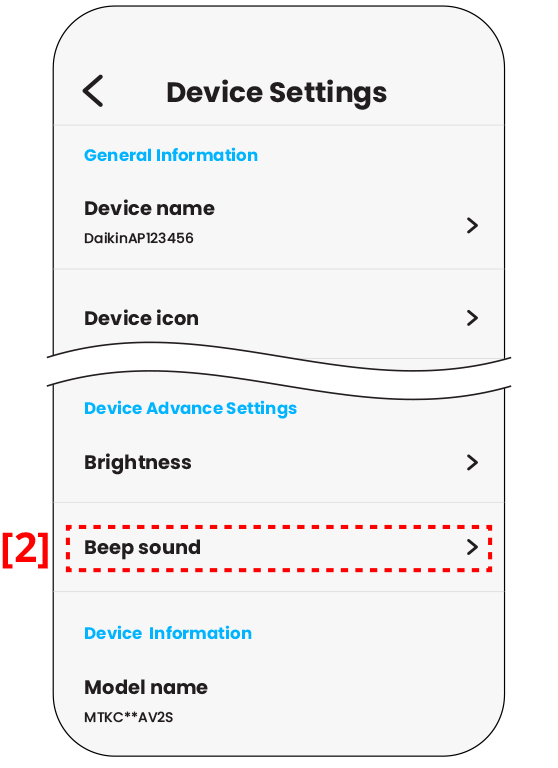 Fig. 2
 -
Select the desired beep sound as follow.
 The beep sound was turned on (default)
Turn off the beep sound
Close
