

 Full manual PDF



-
Adding Scheduling Operations
This functions are useful for automatically switching the air conditioner on or off at night or in the morning and the time format.
You can set up 6 actions per day of the week that include the air care 2 themes.
You can set up 6 actions per day of the week that include the air care 2 themes.
 ATTENTION
- The scheduling operation cannot be used if a schedule has never been added in online mode before, please see “Add Device” .
Adding Scheduling Operations
On the setting schedule page.
To set
- Tap [1] [Select Place] on the screen for select the device area. (Fig. 1)
-
Tap [2] [+ Add Scheduling] on the screen or tap “ + ” the plus symbol at the top right corner. (Fig. 1)
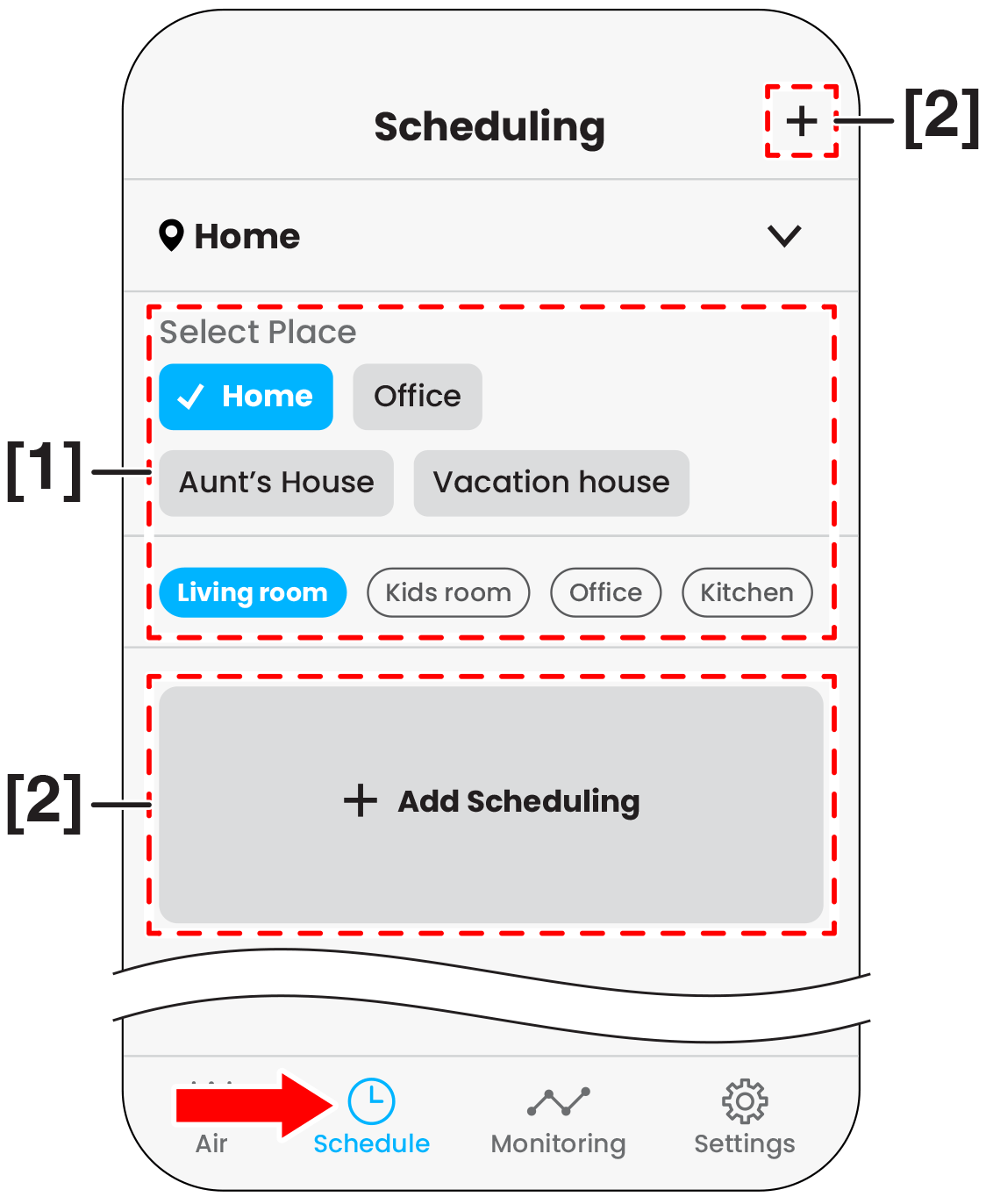 Fig. 1
 - Tap [3] [Where] on the screen for select the room and select the device in the room by tap [4] [What] on the screen. (Fig. 2)
-
Tap [5] for select the operation. (Fig. 2)
The operation card to open the controller page.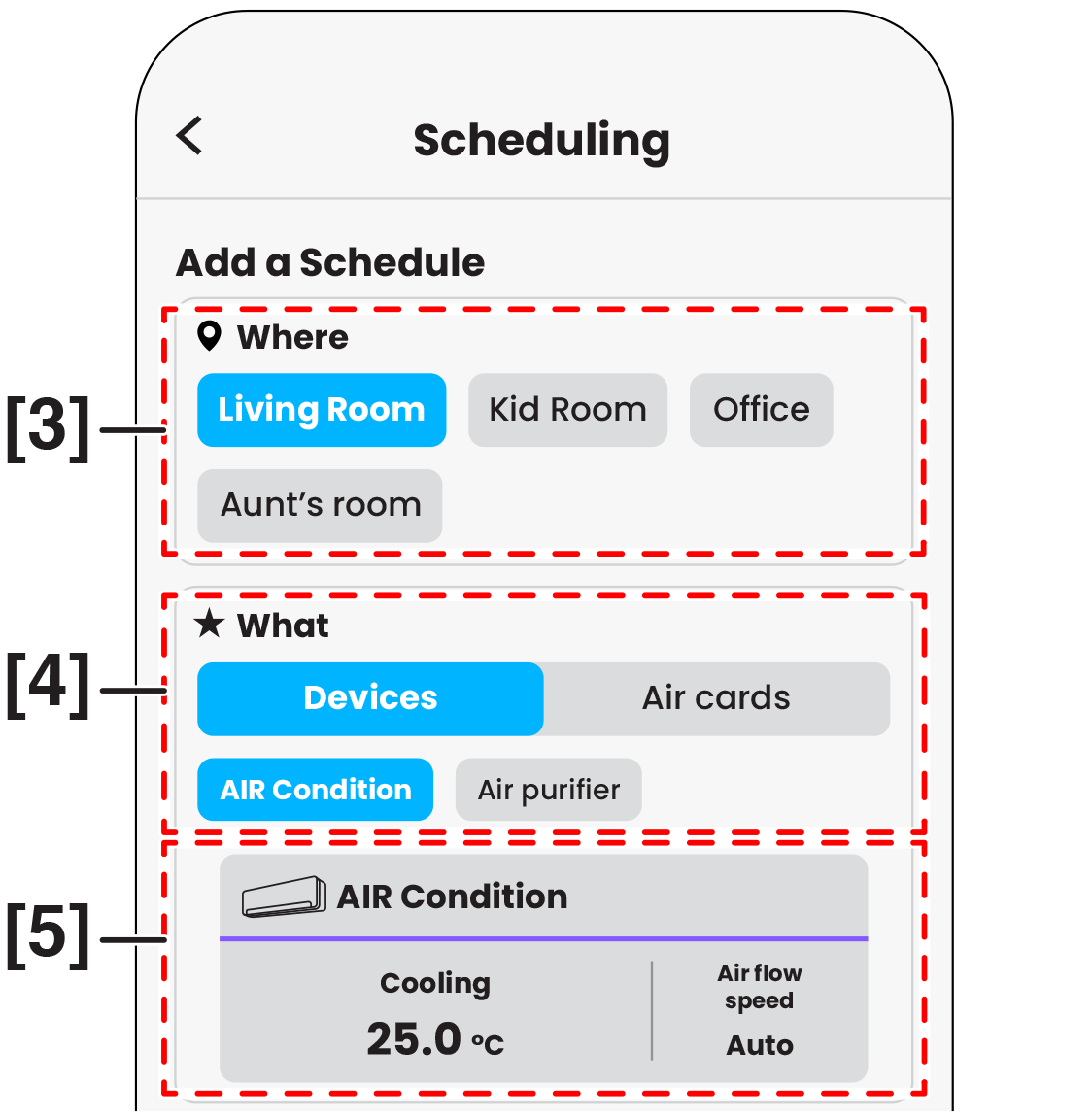 Fig. 2
- Cool operation and automatic fan speed are default.
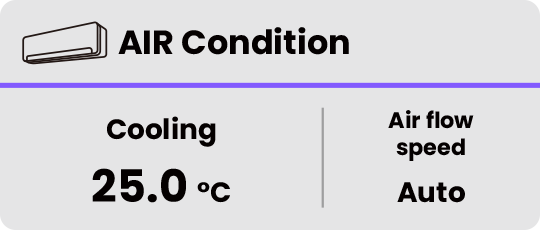 Air conditioner : On
COOL Operation (Default)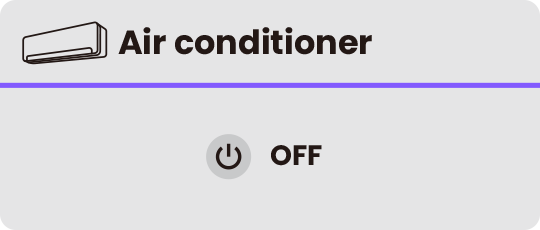 Air conditioner : Off
-
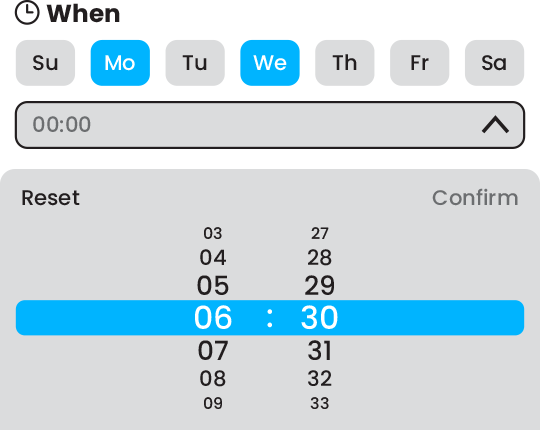
Tap [6] [When] for set the weekly schedule and then tap [7] [
 ] for set the time. (Fig. 3)
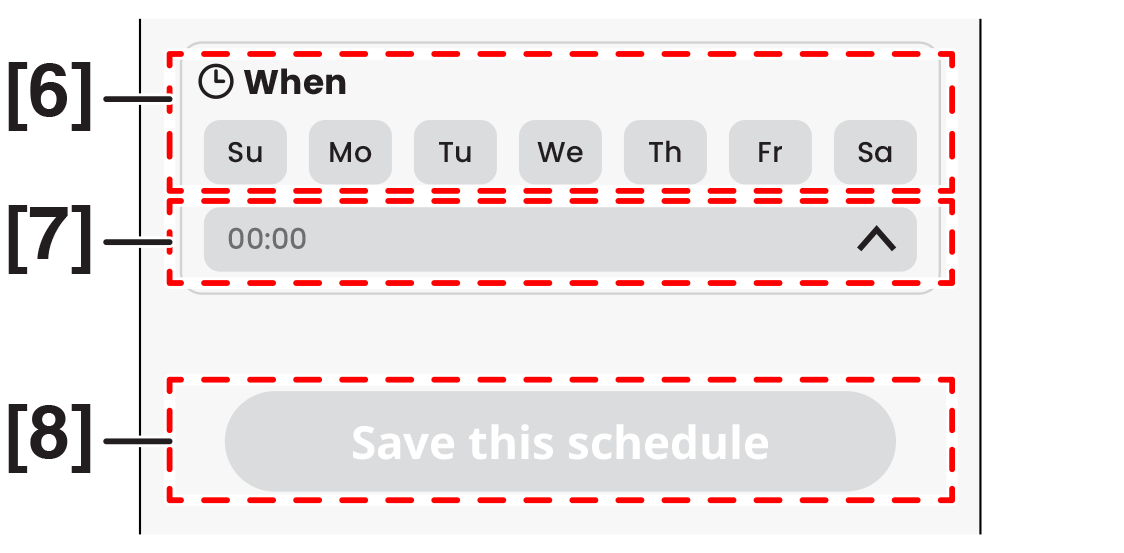 Fig. 3
 Example
-
After you set the time finished, the screen will be appear [8]
[ ] , please tap it for save the schedule. (Fig. 3)
- The schedule will be appear on the schedule page.
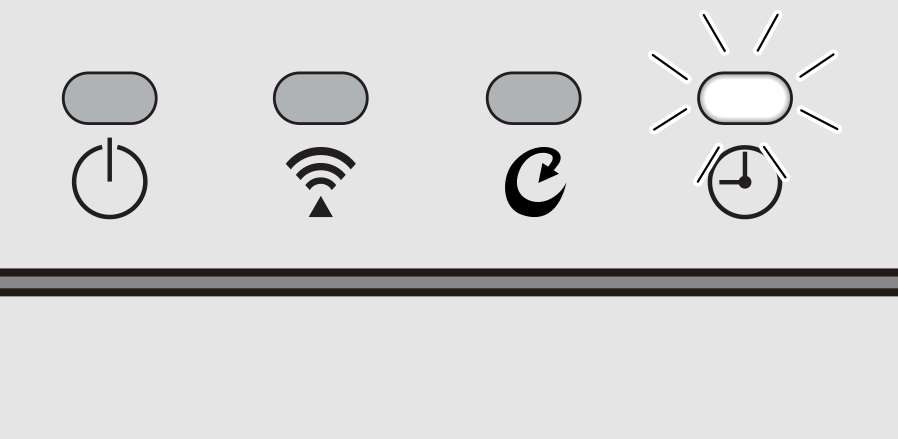
- The scheduling operation lamp lights up.
 Display
NOTE
Notes on Add the new schedule
- If you want to create another schedule, please follow steps 1 to 6.
- Tap the schedule inside the card to edit it.
After saving a schedule, it will appear on the schedule page.
- Tap a device card to view all its schedules.
-
Tap [1] the toggle switch to activate or inactivate the schedule. (Fig. 4)
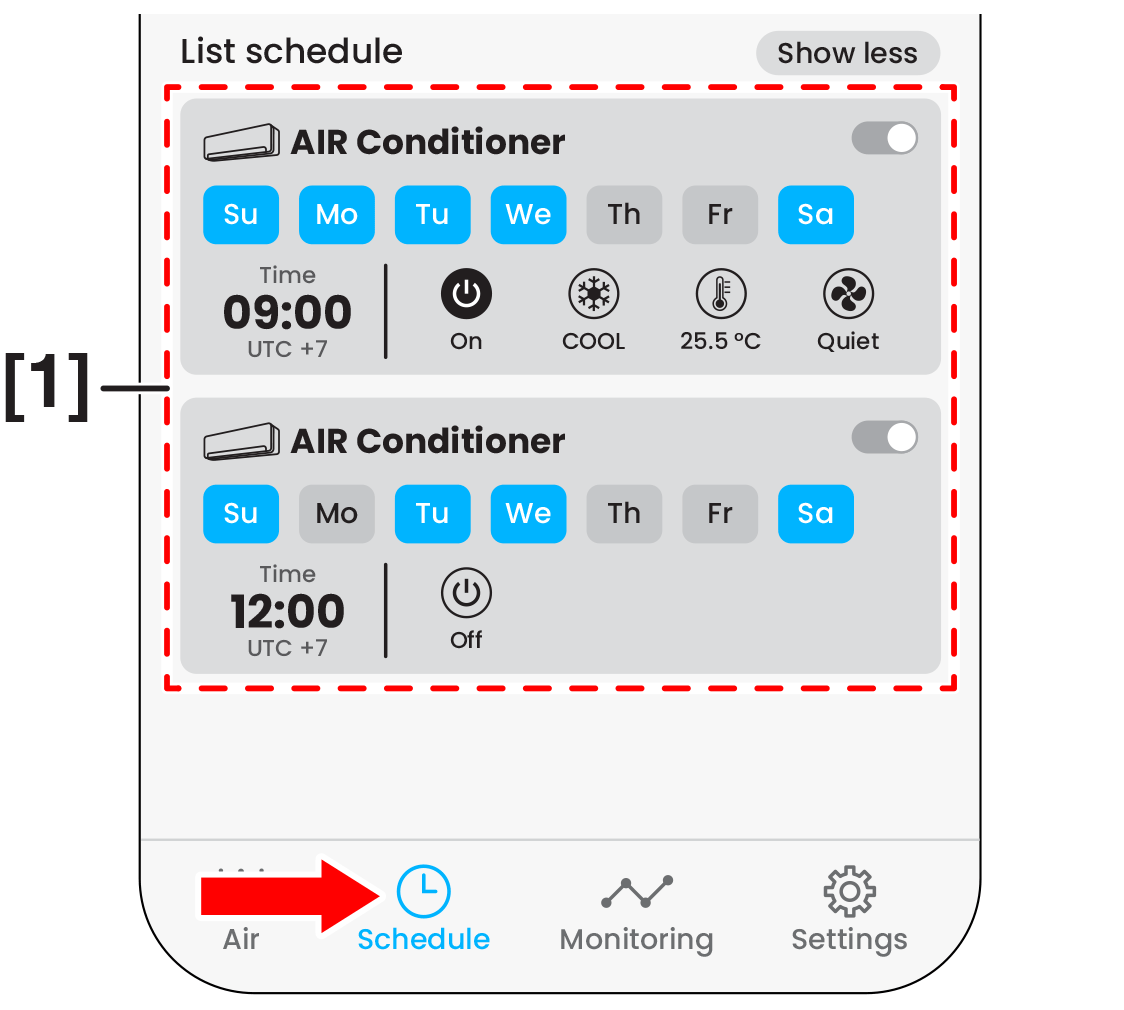 Fig. 4
Close
To cancel scheduling
-
Tap [1] on the screen to left for turn off the schedule. (Fig. 5)
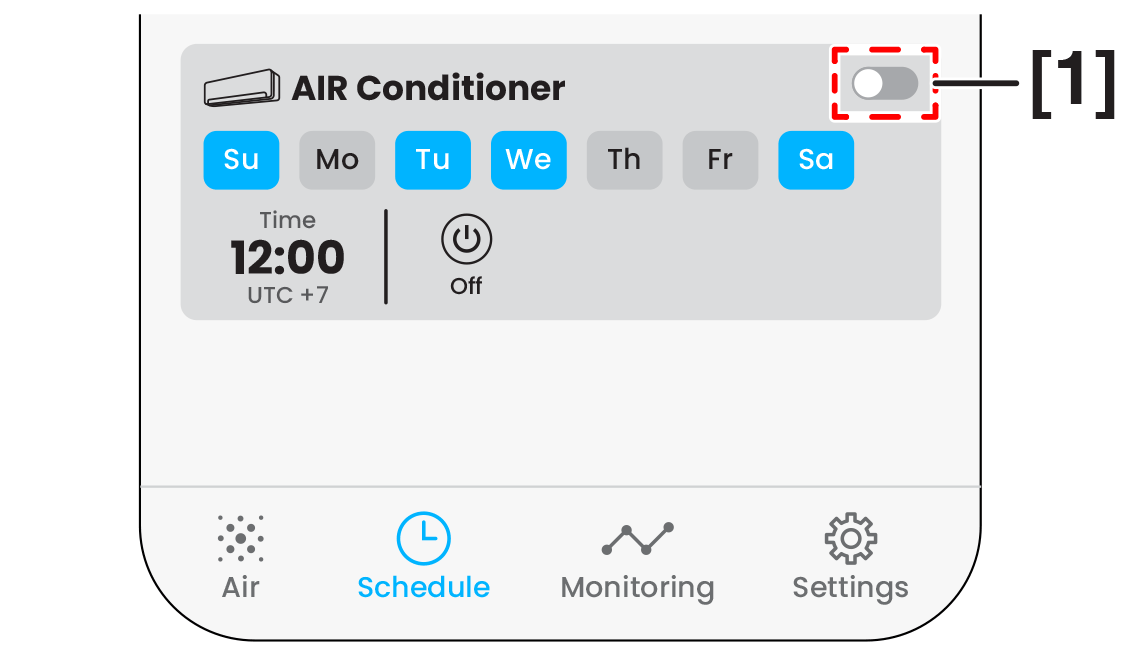
Fig. 5
Close
To delete scheduling
-
Swipe left [1] to delete schedule (Fig. 6) or tap [2] Delete this schedule on the screen to delete it. (Fig. 7)
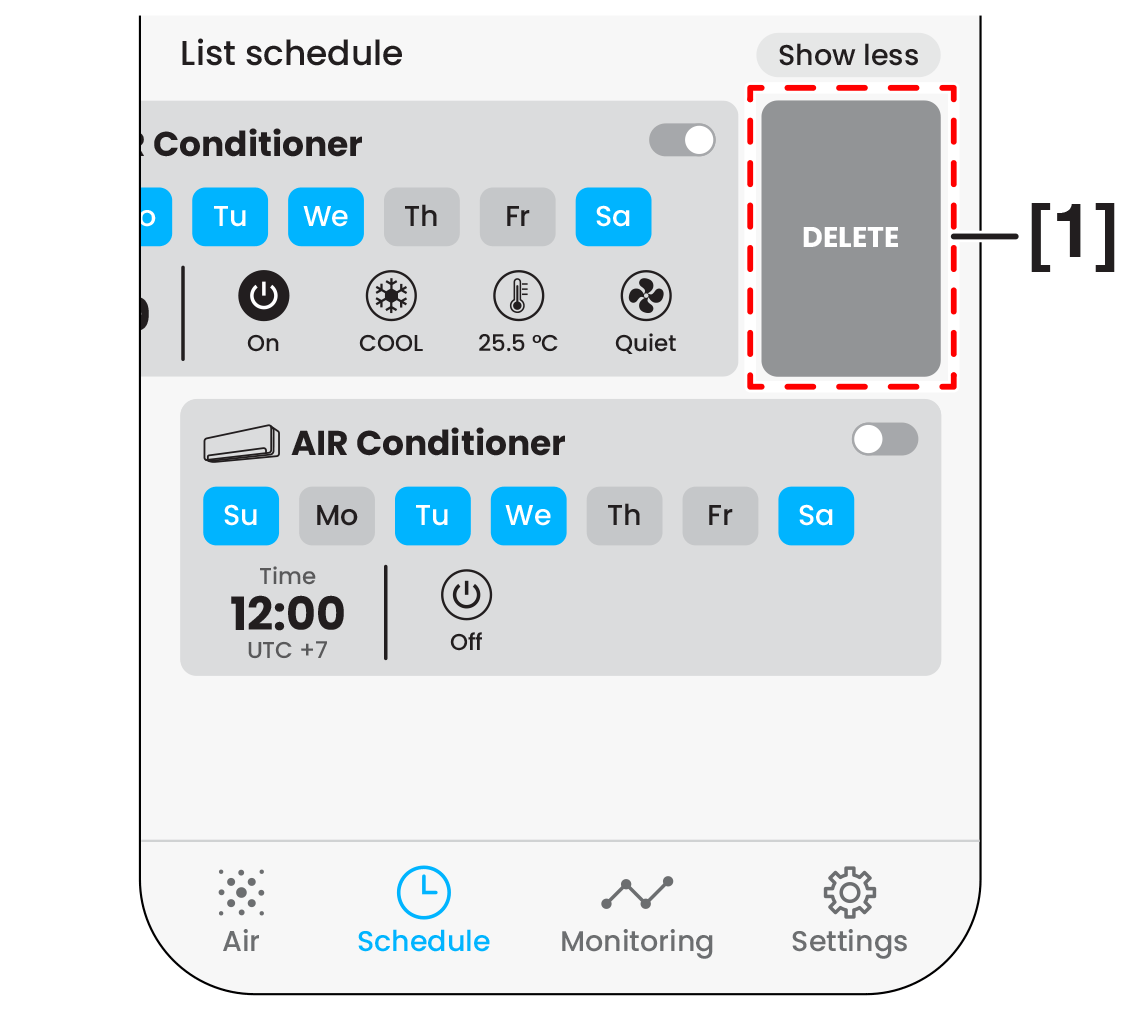
Fig. 6
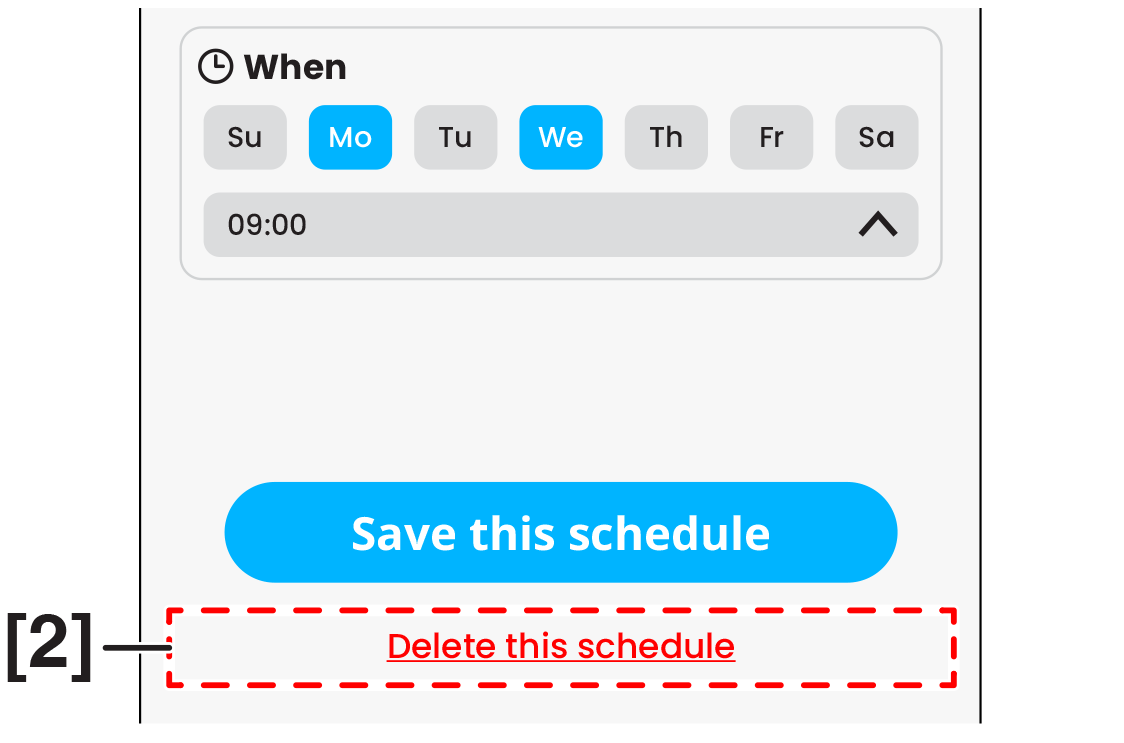
Fig. 7
- The schedule will be delete.
Close
